Basics
See the full guide on Creating a Book.
Overview
Quarto Books are combinations of multiple documents (chapters) into a single manuscript. Books can be created in a variety of formats:
- HTML
- EPUB
- MS Word
HTML books are not that different from Quarto Websites save for the fact that chapters and sections are numbered and therefore support Cross References.
Here are some examples of books created with Quarto:
Getting Started
To create a new book project, use the Quarto create-project command:
$ quarto create-project mybook --type bookThis will create the scaffolding for a simple book in the mybook subdirectory. To build and view the HTML version of the book use the serve command:
$ quarto serve mybookThis will build the HTML version of the book and run a local web server to view it. Here’s what you’ll see in your browser for the simple book scaffolding:
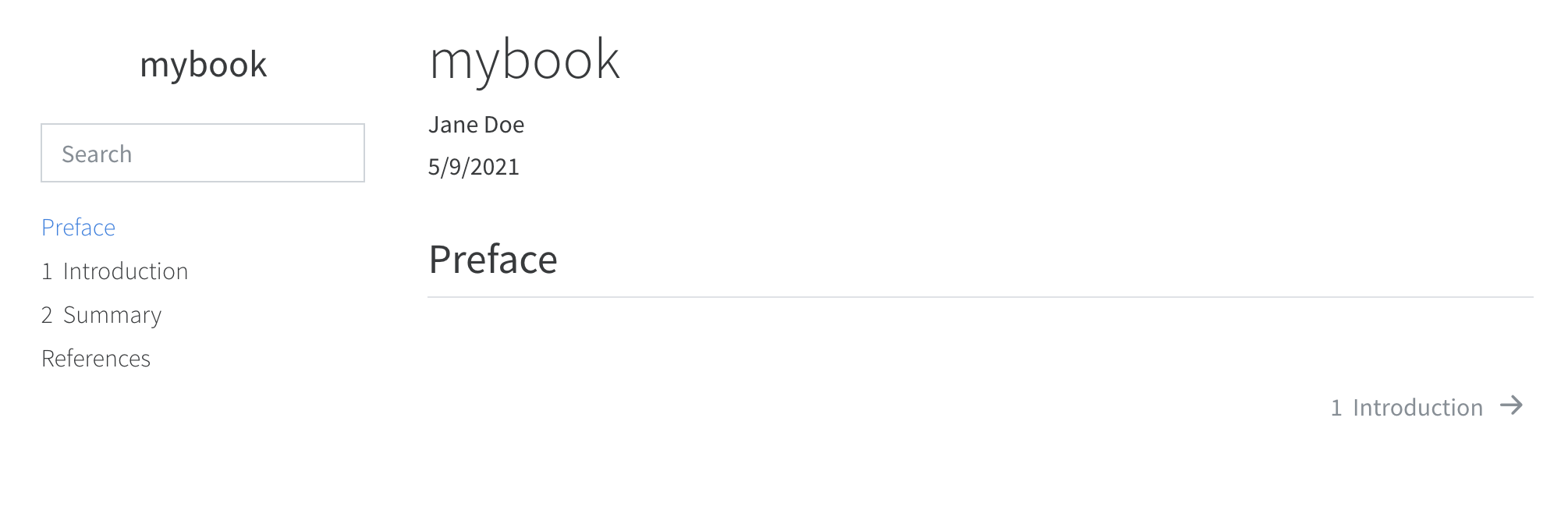
The book’s chapters are contained in the files index.md, introduction.md, summary.md. Try adding some content to one of these files and saving—you’ll notice that the book preview is automatically updated in the browser.
You’ll also notice that a Quarto project file (_quarto.yml) was created in the mybook directory. This file contains the initial configuration for your book:
project:
  type: book

book:
  title: "mybook"
  author: "Jane Doe"
  date: "5/11/2021"
  chapters:
    - index.md
    - intro.md
    - summary.md
    - references.md

bibliography: references.bib

format:
  html:
    theme: cosmo
  pdf:
    documentclass: report
  epub:
    epub-cover-image: cover.png
Workflow
Development
When working on a book, you’ll typically run the local development server as described above and incrementally preview content as you work:
$ quarto serveNote that if you are using Quarto within RStudio, you can run the development server within the RStudio Viewer pane using the quarto R package:
# install the quarto R package
remotes::install_github("quarto-dev/quarto-r")

# run the development server
library(quarto)
quarto_serve()
If you have a plain markdown file (with no computations), then saving it will cause the preview to automatically update (as will changes to config files, CSS files, etc.). If you are working on a file with computations (e.g. an Rmd or Jupyter notebook) then you need to explicitly re-render it to update the preview.
Note that you should also be sure to disable the standard RStudio preview behavior when using this workflow:
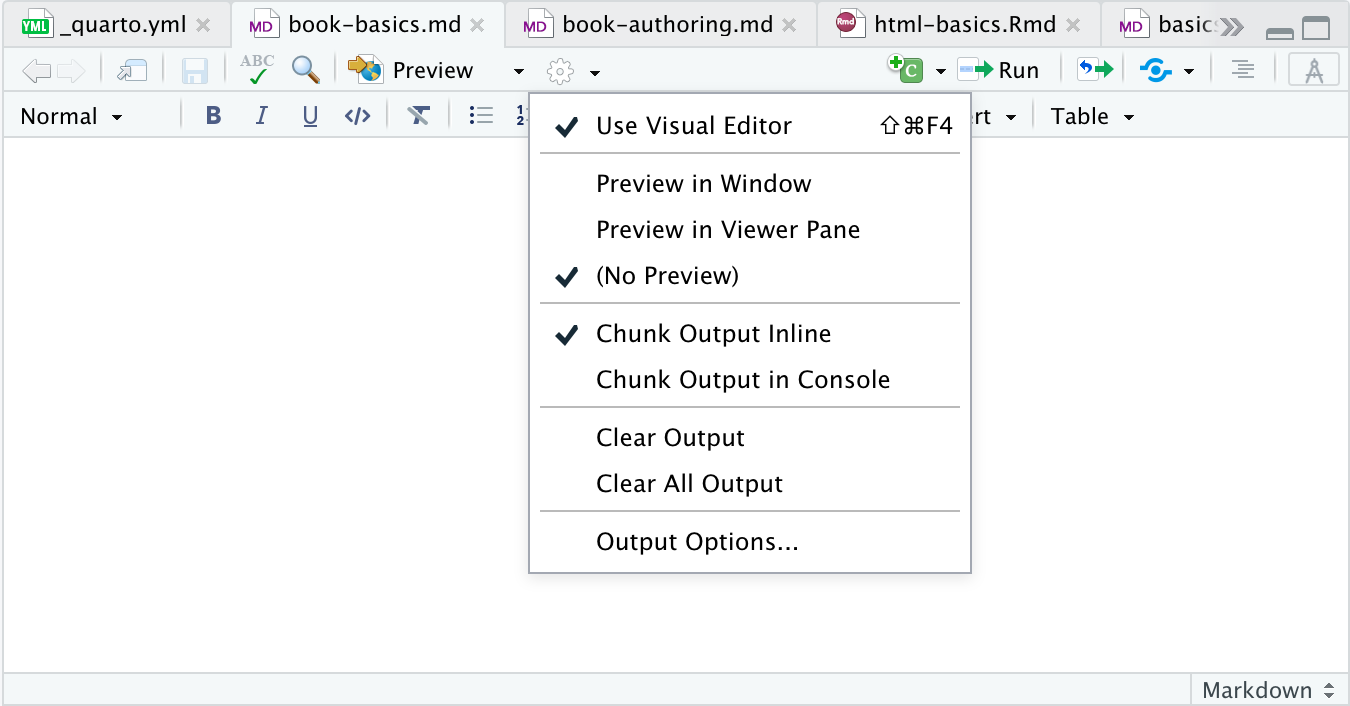
Note that the (No Preview) option is checked to disable the normal preview on render behavior.
Note that development server updates do not cause an update to the final book output. Consequently, you should always quarto render your site before deploying it as described below in Publishing.
Publishing
When you are ready to publish the book, use the render command to render all output formats:
$ quarto render --to allIf you pass no arguments to quarto render the default format (HTML) will be rendered. You can also render individual formats via the --to argument:
$ quarto render           # render default format (HTML)
$ quarto render --to pdf  # render PDF format only
The output of your book will be written to the _book sub-directory of your book project:
mybook/
  _book/
    index.html # and other website files
    mybook.pdf
    mybook.epub
Learning More
Once you are familiar with the basic mechanics, read the article on Book Authoring to learn about:
How to structure your book (numbered and unnumbered chapters/sections, creating multiple parts, adding appendices, etc.)
Incorporating computational output from knitr or Jupyter (including tools for caching the results of longer running chapters/sections).
Creating cross-references to chapters, sections, figures, tables, etc.
Customizing the style and appearance of your book in the various output formats.
Providing navigation and other tools for readers (e.g. download other formats, share on twitter, suggest changes, etc.)