Figures
Quarto includes a number of features aimed at making it easier to work with figures and subfigures, as well as for laying out panels that contain multiple figures, tables, or other content.
Figure Basics
A figure is created whenever a captioned image appears by-itself in a paragraph. For example:
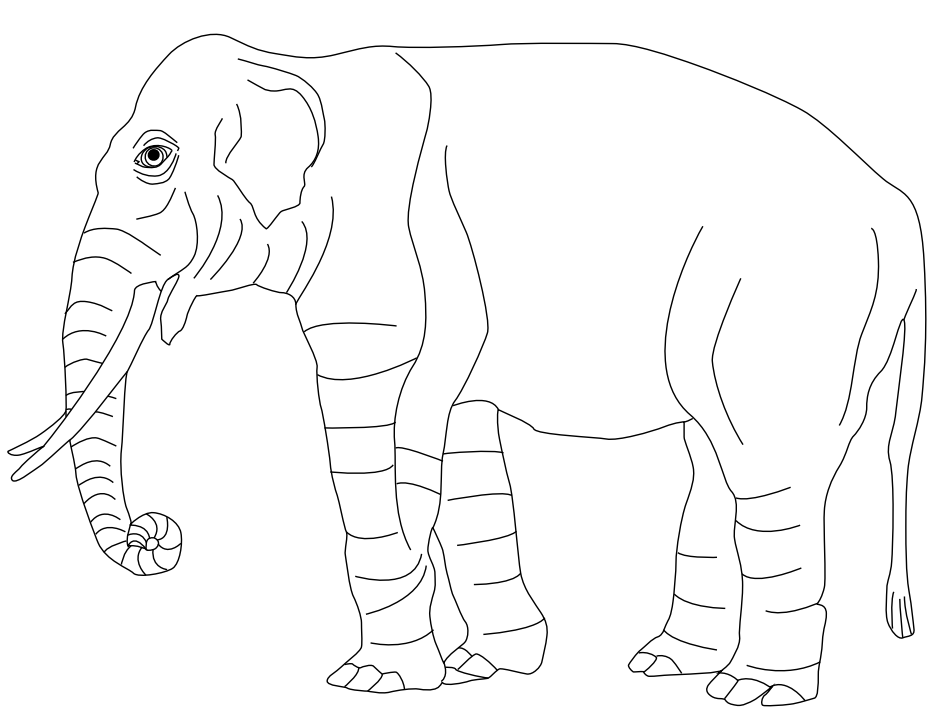This results in the following treatment for various output types:
| HTML | Word | |
|---|---|---|

|

|

|
Note that for LaTeX / PDF output figures are automatically numbered (you can arrange for figures to be numbered in other formats using Cross References).
Figure Sizing
By default figures are displayed using their actual size (subject to the width constraints imposed by the page they are rendered within). You can change the display size by adding the width and height attributes to the figure. For example:
{width="300"}Note that if only width is specified then height is calculated automatically. If you need to modify the default behaviour just add an explicit height attribute.
The default units for width and height are pixels. You can also specify sizes using a percentage or a conventional measurement like inches or millimeters. For example:
{width="80%"}
{width="4in"}Linked Figures
When rendering with Quarto, you can enclose a figure within a link and it will still be treated within output as a captioned figure. For example:
[](https://en.wikipedia.org/wiki/Elephant)Figure Alignment
Figures are center aligned by default. Add the fig-align attribute to the image to use a different alignment. For example:
{fig-align="left"}By default, figure captions are left aligned to accommodate longer caption text.
Alt Text
You can add alternative text to a figure by adding the fig-alt attribute to the image. For example, the following Markdown generates the corresponding HTML with an alt tag:
{fig-alt="A drawing of an elephant."}<img src="elephant.png" alt="A drawing of an elephant.">Note that the figure caption, title, and alt text can all be different. For example:
{fig-alt="A drawing of an elephant."}<img src="elephant.png" title="Title: An elephant" alt="A drawing of an elephant.">fig-alt sets the alt text in every format: the alt attribute in HTML, the picture description in Word, and the alt: of the image in Typst. A figure with a caption but no fig-alt uses its caption as the alt text. In HTML, the <figcaption> that repeats it is then marked aria-hidden="true", so screen readers announce the text once.
Filters that run after Quarto’s own processing (listed after quarto in filters:) see fig-alt already folded into the image’s alt text, which is image.caption in Lua.
To directly render the caption as alt text, append a backslash to the line1.
\Multiformat Figures
You can write markdown that provides a distinct image file format depending on the target output format. To do this simply leave off the extension, for example:
Quarto will look for a file matching the extension associated with the target output format. The default extension per format is:
| Format | Default extension |
|---|---|
html, epub, docx, pptx, and most others
|
.png
|
pdf (via LaTeX / Beamer)
|
.pdf
|
typst
|
.svg
|
So for :
- Rendering to
htmllooks forelephant.png - Rendering to
pdf(LaTeX) looks forelephant.pdf - Rendering to
typstlooks forelephant.svg
You can override the default per format using the default-image-extension option:
format:
  html:
    default-image-extension: svg
  pdf:
    default-image-extension: tex
  typst:
    default-image-extension: png
If you have images with no extension at all (e.g. remote URLs like badge URLs), set default-image-extension to an empty string to prevent Quarto from appending one:
format:
  html:
    default-image-extension: ""
Lightbox Figures
In HTML output formats you can add lightbox styling and behavior to images to allow a reader to click to see a larger version of the image. For example, the following image has lightbox treatment (click on the image to see lightbox in action):

Lightbox treatment can be added by adding the class .lightbox to an image:
{.lightbox}For further details and other ways to enable and disable lightbox treatment see Lightbox Figures.
Applying Multiple Parameters
To combine the above methods, separate arguments by a space, for example:
{fig-alt="A drawing of an elephant." fig-align="left" width=20%}Plot Documents
Quarto can render hephaestus
plot documents — files ending in .hep — directly. A plot document
stores a plot’s data, scales, and theme rather than a picture of it, so
Quarto lays the plot out itself at render time. Reference one exactly
like an image:
{#fig-readings}For the html and revealjs formats Quarto renders the document to an
SVG next to the page (under the page’s _files/figure-html/ directory)
and the figure behaves like any other: it can be captioned,
cross-referenced, sized, and placed in layouts. Text in the plot stays
text, so it is crisp at every zoom level and searchable.
width and height attributes, in pixels, set the size the plot is
laid out at — the plot re-flows to fit rather than being scaled:
{width=480 height=320}Without them, the size recorded when the plot was saved is used.
In quarto preview (and in Quarto Hub) plot documents are drawn live
in the browser: the plot is laid out at the width it gets on the page,
capped at the size above, and re-flows when the window or a slide
changes size.
When the document declares a brand (see Brand), the
brand’s background, foreground and primary colors become the
plot’s paper, ink and accent, so plots follow the brand along with the
rest of the page. Only hex colors carry over; a named CSS color in one
of those slots leaves that slot as the plot defines it.
If the file cannot be read or is not a plot document, Quarto warns
(see the image section of the error reference)
and leaves the image reference as written.
Cross References
You can cross-reference figures by adding an ID with the fig- prefix to them, and then referencing the figure using the @ prefix. For example:
{#fig-elephant}
This is illustrated well by @fig-elephant.For figures produced by executable code cells, include a label with a fig- prefix to make them cross-referenceable. For example:
For a demonstration of a line plot, see @fig-line-plot.

```{python}
#| label: fig-line-plot
#| fig-cap: "A line plot "

import matplotlib.pyplot as plt
plt.plot([1,23,2,4])
plt.show()
```In order for a figure to be cross-referenceable, its label must start with the fig- prefix.
See the article on Cross References for additional details.
Subfigures
If you have several figures that appear as a group, you can create a figure div to enclose them. For example:
::: {#fig-elephants layout-ncol=2}
{#fig-surus}
{#fig-hanno}
Famous Elephants
:::Again, the last paragraph provides the main caption, and the individual figures carry the sub-captions. Here is what this looks like when rendered as HTML:

Note that the empty lines between the figures (and between the last figure and the caption) are required (it’s what indicates that these images belong to their own paragraphs rather than being multiple images within the same paragraph).
Note also that we also used a layout-ncol attribute to specify a two-column layout. The next section delves more into customizing figure layouts.
Figure Panels
Above we demonstrate laying out two side-by-side figures with subcaptions and a main caption. You may or may not want the caption / sub-caption treatment, and you might also want to use multiple rows of figures. All of these variations are possible.
To layout two figures with their own standalone captions (and no main caption), just eliminate the #fig identifiers and main caption at the bottom:
::: {layout-ncol=2}


:::
You can also eliminate the captions entirely:
::: {layout-ncol=2}


:::Multiple Rows
If you have more than 2 images, you might want to lay them out across multiple rows. You can do this using the layout-nrow attribute. For example:
::: {layout-nrow=2}


:::
More complex figure arrangements (e.g. rows with varying column layouts) are possible. See the Custom Layouts section below for more details.
Figure Divs
You can treat any markdown content you want as a figure by enclosing it in Pandoc div block with an identifier prefaced with #fig-. For example, here we create a figure that includes an embedded iframe:
::: {#fig-elephant}

<iframe width="560" height="315" src="https://www.youtube.com/embed/SNggmeilXDQ"></iframe>

Elephant
:::
Note that the last paragraph in the div block is used as the figure caption.
If your figure was generated by an executable code block and the code was included in the output (echo: true), then fig-pos will be set to H by default (to try to keep it alongside the code that generated it). In all other cases, default LaTeX handing of figure position is used unless you specify an explicit fig-pos.
Short Captions
You can provide a short caption that is used in the “List of Figures” using the fig-scap option.
You can specify fig-scap as an executable code block option or as an attribute on an image:
```{python}
#| fig-cap: "Long caption"
#| fig-scap: "Short caption"
```
{fig-scap='Short caption'}Caption Locations
By default, figure captions are positioned below figures. In HTML and PDF formats, you can modify this behavior using the fig-cap-location option. For example:
---
fig-cap-location: top
---
Note that this option is specified at the top level so that it can be shared by both PDF and HTML formats. If you are only targeting a single format you can place it alongside other format specific options.
Valid values for the caption location include:
| Value | Description |
|---|---|
top
|
Position the caption above the figure. |
bottom
|
Position the caption below the figure. |
margin
|
Position the caption in the margin. |
See the article on Article Layout for additional details on placing captions in the margin.
Custom Layouts
The examples above used the layout-ncol or layout-nrow attributes to create straightforward layouts where all columns are of equal sizes. The layout attribute enables the creation of much more complex layouts.
For example, this defines a layout with two equally sized figures in the first row, then another image that spans the entire second row:
::: {layout="[[1,1], [1]]"}


:::
The layout attribute is a 2-dimensional array where the first dimension defines rows and the second columns. In this case "layout="[[1,1], [1]]" translates to: create two rows, the first of which has two columns of equal size and the second of which has a single column.
Note that the numbers in a row are arbitrary and don’t need to add up to a particular total. You can therefore use whatever scheme is most natural. For example, here we define columns that occupy varying percentage widths of the row:
::: {layout="[[70,30], [100]]"}


:::You can also use negative values to create space between elements. For example:
::: {layout="[[40,-20,40], [100]]"}


:::
Vertical Alignment
If you have a layout with a row of images of differing heights, you can control their vertical alignment using the layout-valign attribute. A simple example:
::: {layout="[15,-2,10]" layout-valign="bottom"}


:::
Note that vertical alignment isn’t limited to images, you can also vertically align any other elements that are included in a panel.
Computations
Figures produced by executable code blocks are automatically included in your document.
To set the ID, caption and link, use the chunk options label, fig-cap and fig-link respectively.
Other attributes, e.g. fig-align and fig-alt, can be set using the chunk option of the same name.
You can control the default size for computational figures using the fig-width and fig-height options in the document header.
Read more about these options in Execution Options: Figure Options.
Layout
Note that figure layout attributes also work for figures produced by executable code blocks. Here are examples for both Jupyter and Knitr:
#| layout-ncol: 2
#| fig-cap:
#|   - "Line Plot 1"
#|   - "Line Plot 2"

import matplotlib.pyplot as plt
plt.plot([1,23,2,4])
plt.show()

plt.plot([8,65,23,90])
plt.show()
#| layout-ncol: 2
#| fig-cap:
#|   - "Speed and Stopping Distances of Cars"
#|   - "Vapor Pressure of Mercury as a Function of Temperature"

plot(cars)
plot(pressure)
Note that in these examples we also use the fig-cap option to apply a caption to each of the generated figures.
Subcaptions
You can create subcaptions for computational output by combining the fig-cap and fig-subcap options. When applying captions to computational output you can optionally include a label with a fig- prefix—if you do this then the figure will be numbered and cross-referenceable.
#| label: fig-charts-jupyter
#| fig-cap: "Charts"
#| fig-subcap:
#|   - "First"
#|   - "Second"
#| layout-ncol: 2

import matplotlib.pyplot as plt
plt.plot([1,23,2,4])
plt.show()

plt.plot([8,65,23,90])
plt.show()
#| label: fig-charts-knitr
#| fig-cap: "Charts"
#| fig-subcap:
#|   - "Cars"
#|   - "Pressure"
#| layout-ncol: 2

plot(cars)
plot(pressure)
Custom Layout
The layout works the same way for figures produced by Knitr or Jupyter. For example, here’s an Rmd code chunk that produces 3 plots and defines a custom layout for them:
#| layout: [[45,-10, 45], [100]]

plot(cars)
plot(pressure)
plot(mtcars)
Block Layout
While the examples above illustrate laying out figures, it’s important to note that layout attributes can be used to layout any sort of block content. For example, here we layout 2 lists side-by-side:
::: {layout-ncol=2}
### List One

- Item A
- Item B
- Item C

### List Two

- Item X
- Item Y
- Item Z
:::
Note that headings are automatically combined with the block that follows them, so this markdown has a total of 2 columns to lay out. Here’s an example of a paragraph next to a bullet list (without headings):
::: {layout-ncol=2}
- Item X
- Item Y
- Item Z

Lorem ipsum dolor sit amet, consectetur adipiscing elit. Curabitur gravida eu erat et fring. Morbi congue augue vel eros ullamcorper, eget convallis tortor sagittis. Fusce sodales viverra mauris a fringilla. Donec feugiat, justo eu blandit placerat, enim dui volutpat turpis, eu dictum lectus urna eu urna. Mauris sed massa ornare, interdum ipsum a, semper massa.
:::
For more complicated content use divs (:::) to divide your content into blocks for the layout. For example, here’s how you could lay out a code cell along with some text, next to a figure:
:::: {layout="[ 40, 60 ]"}
::: {#first-column}
```r
# Some code
```
Some text that should be laid out below the code
:::
::: {#second-column}

:::
::::The id attributes (#first-column and #second-column) are optional,
but aid readability.
Footnotes
This causes an empty additional character to be added to the paragraph, which means the image is no longer recognizes as a figure.↩︎